If you’ve spent any time building Salesforce record pages, you know the feeling. You drag the Files related list onto a Lightning page, and within a week someone asks: “Can users download all files at once?” No. “Can we restrict uploads to PDFs only?” No. “Can we set a file size limit?” Also no.
The standard Salesforce Files component is functional, but barely. And after 12 years of hearing the same complaints across dozens of projects, we decided to do something about it.
The problem every Salesforce team knows
The native Files related list does one job: it shows files attached to a record. That’s it. No bulk operations, no upload validation, no configurable display, no meaningful per-file actions beyond the basics.
In my experience as an architect and developer, this gap shows up everywhere. Sales teams need to download entire document packages before client meetings. Compliance teams need to restrict uploads to approved file types. Operations teams need file size limits to prevent 200 MB dumps into Salesforce storage. Every time, the answer is the same: “The standard component can’t do that.”
I’ve seen teams build custom LWC wrappers, write Apex triggers for upload validation, chain Flows together for download workarounds — each implementation taking days or weeks, each org solving the same problems independently.
What Smarter Files actually does
At Tucario, we built Smarter Files — a free, open-source Lightning Web Component that replaces the standard Files related list with something that actually meets real-world requirements. It’s available on GitHub and can be deployed to any Salesforce org in minutes.
Here’s what it brings to the table.
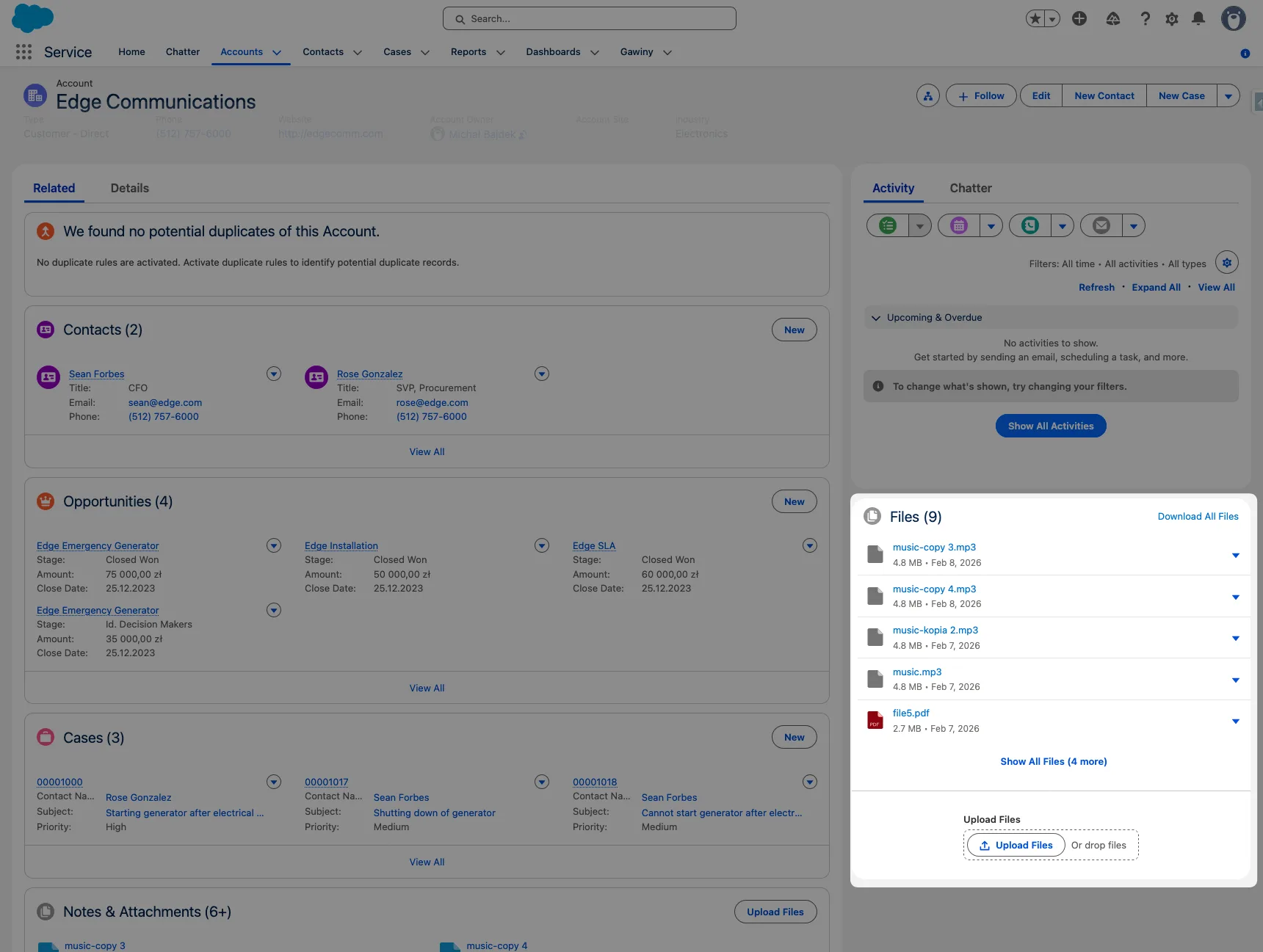
Bulk download as ZIP
One click. All files on the record get downloaded. The component uses a smart two-tier approach: files under 18 MB are fetched through Apex and compressed client-side into a ZIP archive named after the record. Files exceeding the Apex heap size limit are handled separately through the Salesforce file servlet for server-side download. The result: every file gets downloaded, regardless of size. No files are skipped, no silent failures.
This alone solves the number one complaint I’ve heard from end users over the years.
Upload restrictions by file type
Admins can define an allowlist of permitted file extensions directly in the Lightning App Builder — no code required. Set it to pdf, docx, png and only those types get through. Everything else is rejected with a clear toast message explaining why.
The validation happens client-side before the upload completes. The extension parser is flexible — leading dots are stripped, whitespace is trimmed, matching is case-insensitive. Whether you type pdf, .PDF, or .Pdf, it all works the same way.
Configurable file size limits
Set a maximum upload size in megabytes per component placement. Different record pages can have different limits. A post-upload validation catches anything that slips through, and violations are automatically cleaned up.
This is something Salesforce only offers at the org level. Smarter Files gives you granular control where it matters — at the page level.
Dual display modes
Choose between List view (detailed rows with file name, size, date, and actions) and Tile view (a responsive grid layout for visual scanning). The display mode is configurable per page placement, so you can use tiles on a media-heavy object and lists on a document-heavy one.
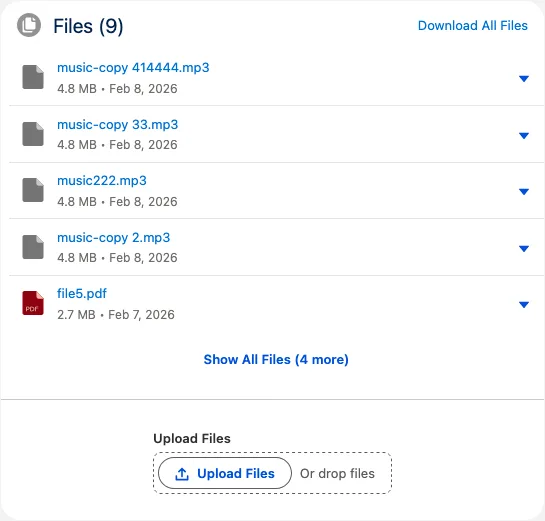
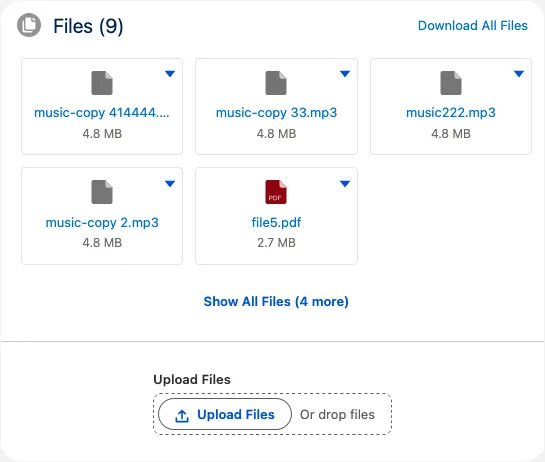
Full per-file action menu
Every file gets a context menu with actions that the standard component either hides or doesn’t offer:
- Download — single file download via direct servlet URL, bypassing Apex entirely with no size constraints
- Share — native Salesforce sharing for the file
- Public Link — generates a Content Delivery link and copies it to the clipboard in one click
- View File Details — navigates to the ContentDocument record
- Edit File Details — opens a modal to edit the file’s Title and Description without leaving the page
- Delete — permanently removes the file (with confirmation)
- Remove from Record — removes the file association but keeps the file in Salesforce
All actions are permission-aware. Users only see what they’re allowed to do based on their actual access to the record and the file.
Configurable display count
Control how many files appear initially — show 3, 5, 10, or all. Users can expand to see the rest with a single click. Small detail, but it makes a difference on records with 50+ attachments.
Full label customization
Every string in the component — every button, toast message, confirmation dialog, and error message — is backed by a Salesforce Custom Label. That’s 67 labels that admins can customize through Setup without touching code. Need the component in German? Change the labels. Want different confirmation text? Change the labels.
Why free and open-source
I could write a paragraph about community spirit, but the honest answer is simpler: this should have been standard functionality in the first place.
Every Salesforce org needs file management. The platform’s native component hasn’t meaningfully evolved in years. Thousands of teams are building the same workarounds independently. That’s wasted effort across the ecosystem.
We built Smarter Files as an open-source project under the MIT license. No AppExchange listing, no managed package, no license keys. Deploy it from GitHub, configure it in the Lightning App Builder, and you’re done.
How it’s built
For the technically curious — Smarter Files is a proper SFDX project with a clean architecture:
- Apex controller (
with sharing) that respects org sharing rules and handles file operations, download content retrieval, public link creation, and upload validation - Two LWC components — the main file list and a modal for inline editing
- JSZip loaded as a static resource for client-side ZIP generation (lazy-loaded, so it doesn’t impact page load when users aren’t downloading)
- Permission set for granting Apex class access to non-admin users
- Test class included for deployment to production orgs
The whole thing respects Salesforce security: sharing rules, field-level security, user permissions. No without sharing shortcuts.
Deployment takes five minutes
Two options:
- One-click deploy — click the button below, authorize your org, and deploy:

- Salesforce CLI — for teams that prefer the command line:
sf project deploy start --source-dir src --target-org <your-org-alias>
After deployment, drop the component onto any record page in Lightning App Builder and configure five properties:
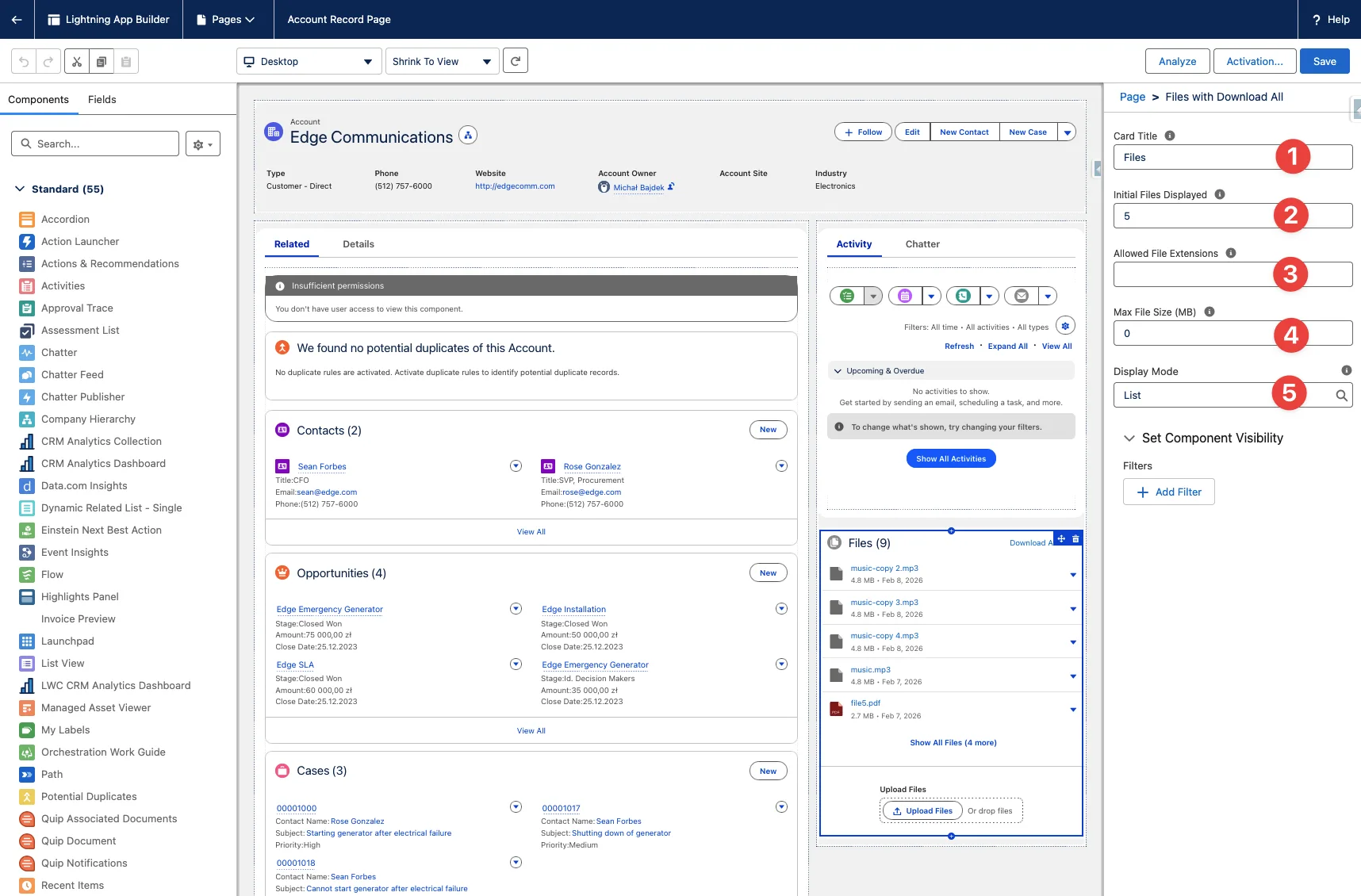
- Card Title — the header text displayed on the component card (default: “Files”)
- Allowed File Extensions — a comma-separated allowlist of permitted file types (e.g.,
pdf, docx, png). Leave empty to allow all types - Initial Files Displayed — how many files to show before the “Show All” toggle appears (default: 5, set to 0 to show all)
- Display Mode — choose between List (vertical rows with name, size, and date) or Tiles (responsive grid with file type icons)
- Max File Size (MB) — maximum upload size in megabytes per file (default: 0, meaning no limit)
Save and activate the page, assign the Tucario Files permission set to your users, and you’re live.
What the standard component should have been
I want to be clear about tradeoffs. Smarter Files is an unmanaged deployment — it lives in your org as custom metadata, not a managed package. That means you own the code. You can modify it, extend it, or break it. There’s no automatic upgrade path; future improvements require a new deployment.
For most orgs, that’s a perfectly acceptable tradeoff. You get full control, full visibility into the code, and zero vendor lock-in.
The takeaway
File management on Salesforce record pages has been an afterthought for too long. The standard Files component covers the minimum, and every team that needs more ends up building their own solution from scratch.
Smarter Files is our answer to that. Built from real project experience, covering the features that actually matter, and available for free. If you’ve been fighting with the standard file component — or worse, building a custom one — give it a look.
The source code is on GitHub. Deploy it, try it, and if you have ideas for improvements — contributions are welcome.
Comments